Learn how to process a sale with BrandDrive POS and review completed POS transactions.
How to Make a Sale Using BrandDrive POS
Use Point of Sale to select products, assign a customer, apply discounts and record payment from one checkout flow.
1. Open Point of Sale
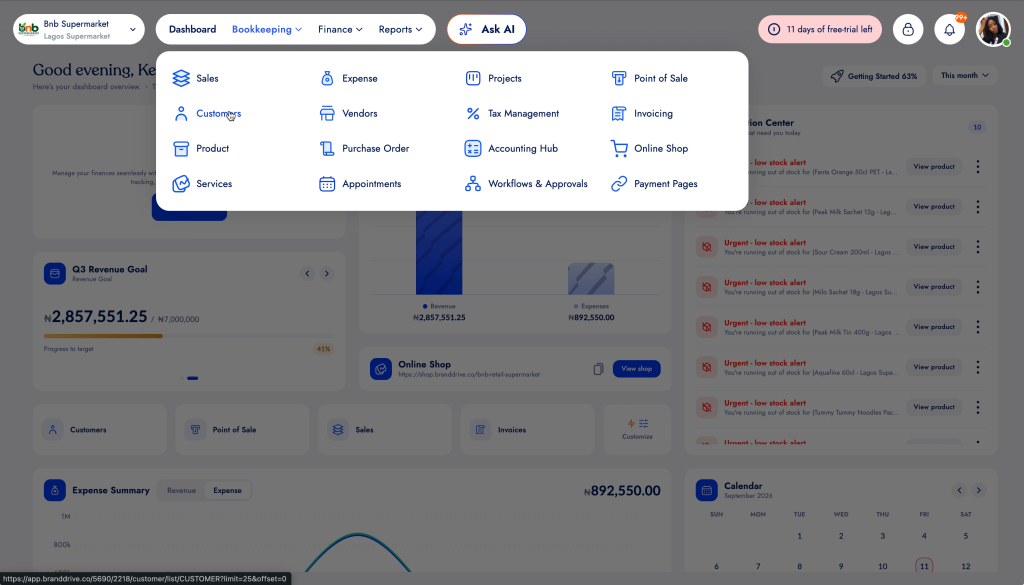
From the BrandDrive dashboard, open the Bookkeeping menu and select Point of Sale.
2. Add products to the order
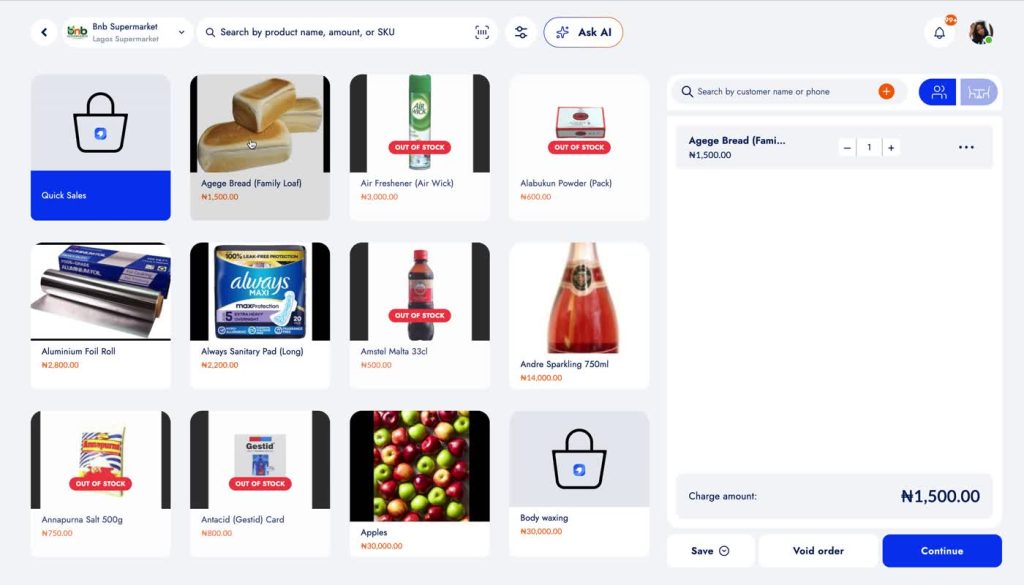
Select products from the product grid. You can also use the search field to find a product by name, amount or SKU. Adjust quantities as needed.
3. Review the order
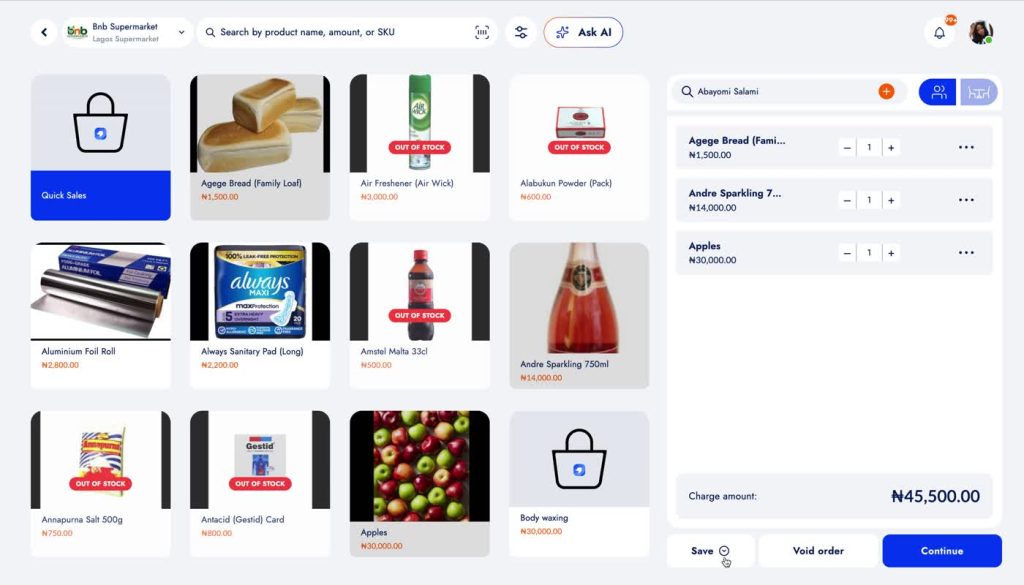
Confirm the selected products, quantities and charge amount, then click Continue.
4. Select the customer
Choose the customer for the sale or use the available customer option for the transaction.
5. Apply discounts or loyalty benefits
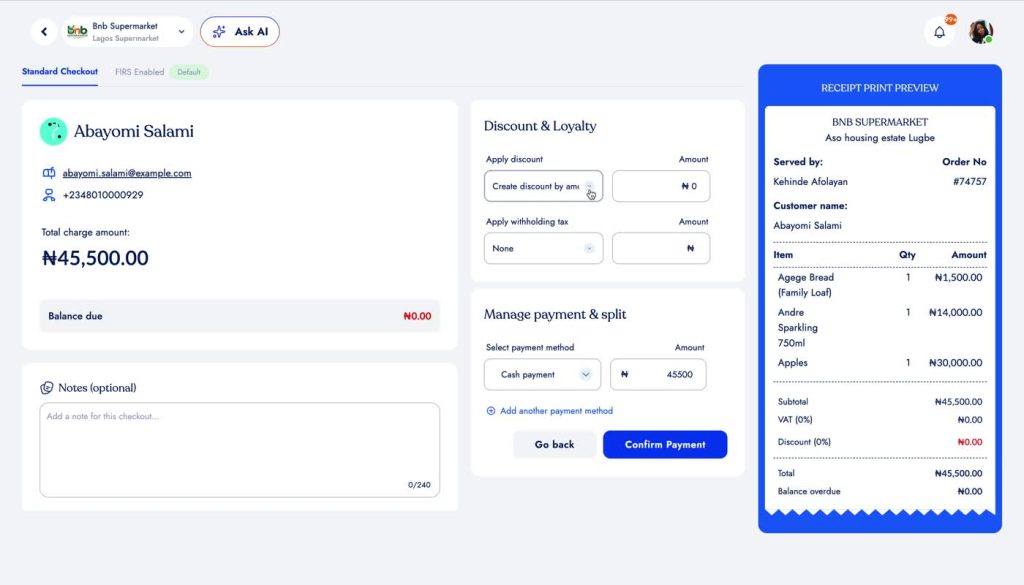
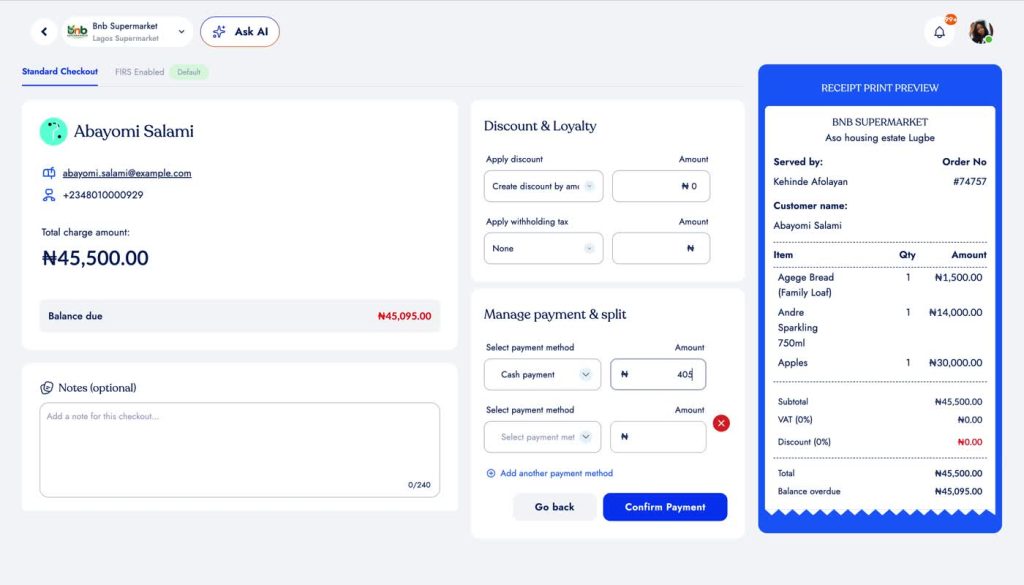
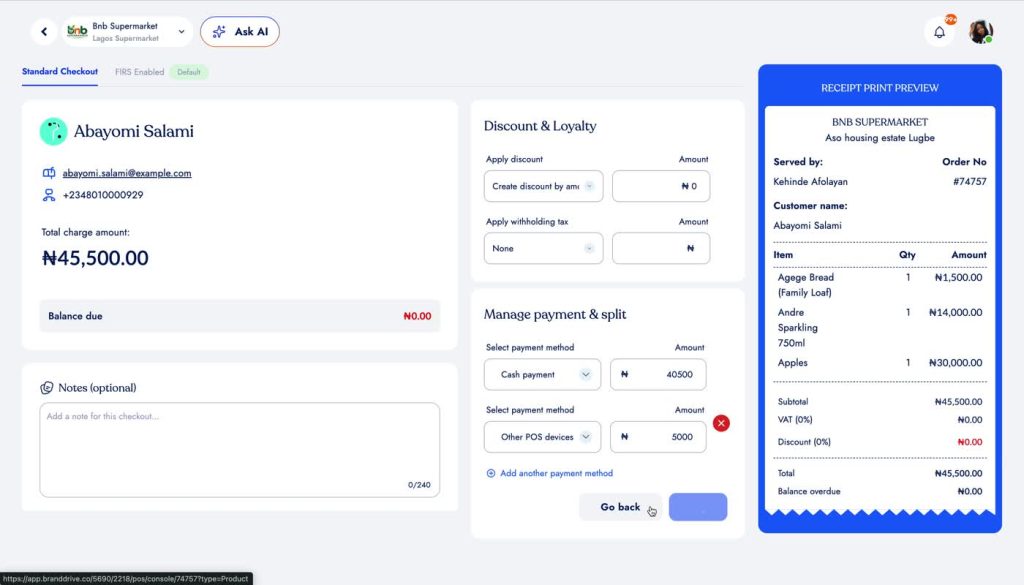
Use Discount & Loyalty if a discount or loyalty benefit should be applied to the order.
6. Choose the payment method
Under Manage payment & split, select the payment method and enter the amount received. Add another payment method if the customer is splitting the payment.
7. Confirm payment
Review the receipt preview and payment details, then click Confirm Payment to complete the sale.